
WINBOX WITHDRAW USER GUIDE

Winbox Withdraw Tutorial – Step-by-Step Withdrawal Guide

The Winbox Withdraw Tutorial explains how to submit a withdrawal request, review the required account information and check the transaction status after submission.

The exact withdrawal interface, verification requirements, available methods and transaction limits can change. Always use the information displayed in your current account as the primary reference rather than relying only on older screenshots.

Before beginning, existing members should use Login Winbox to access the correct account. Users who have not created an account can review Register Winbox for the account setup process.

Quick Answer: How Do I Withdraw?

To begin a withdrawal, sign in to your account and open the Top up / Withdraw section. Select Withdraw, choose or confirm the available withdrawal method, enter the required information and amount, and carefully review the details before submitting the request.

After submission, check the transaction status and retain any order number or transaction reference until the withdrawal has been completed.

Do not submit the same withdrawal repeatedly while an existing request is still being processed.

Winbox Withdrawal at a Glance

The general withdrawal process can be understood in six steps:

01

Sign in and open Top up / Withdraw.

02

Select Withdraw.

03

Select or confirm the available withdrawal method.

04

Enter the requested withdrawal details and amount.

05

Review the information and submit the withdrawal request.

06

Check the withdrawal status and retain the transaction reference.

!

The exact sequence may differ depending on the account and current interface. Follow the instructions displayed during the transaction.

Before You Make a Withdrawal

Before submitting a withdrawal request, check that you are signed in to the intended account and that the account information required for the transaction is accurate.

✓

Review the withdrawal method, recipient or bank information, requested amount, displayed transaction limits and any verification requirements before continuing.

✓

If the account requires additional verification before withdrawals are available, complete the requested verification through the appropriate account interface first.

!
Security Reminder

Never provide an account password, online-banking password, OTP or payment PIN to an unknown third party as part of a withdrawal request.

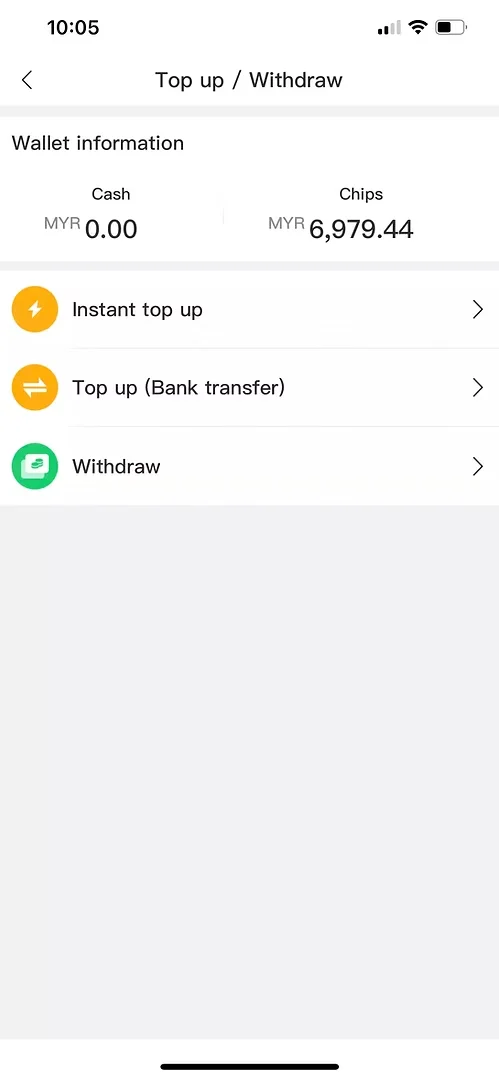
Winbox Withdraw Tutorial Step 1 showing Top up and Withdraw menu
Step 1: Open the Top up / Withdraw menu and select Withdraw.
STEP 01

Step 1: Open Top Up / Withdraw and Select Withdraw

After signing in, open the Top up / Withdraw section from the account interface.

The page may display several transaction options, such as Instant Top Up, Bank Transfer and Withdraw. Select Withdraw to continue to the withdrawal interface.

Before proceeding, make sure you have selected Withdraw rather than one of the top-up options.
Winbox Withdraw Tutorial Step 2 showing available withdrawal method
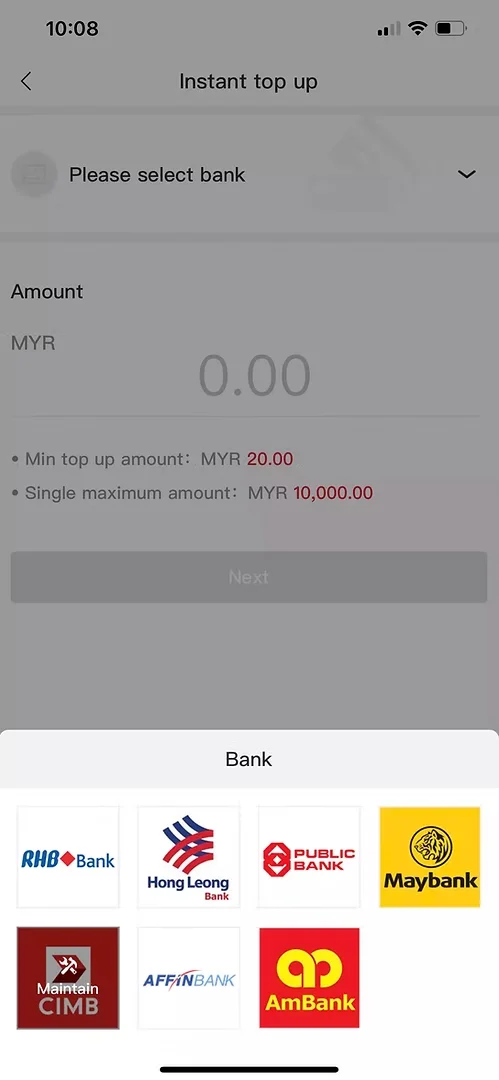
Step 2: Review and select an available withdrawal method.
STEP 02

Step 2: Review the Available Withdrawal Method

Review the withdrawal methods currently available for the account and select the appropriate option where required.

Available methods can differ depending on the current system or account configuration, so use the options actually displayed in the withdrawal interface.

If a method you previously used is no longer displayed, do not assume that the old method remains available.
Winbox Withdraw Tutorial Step 3 showing withdrawal account information
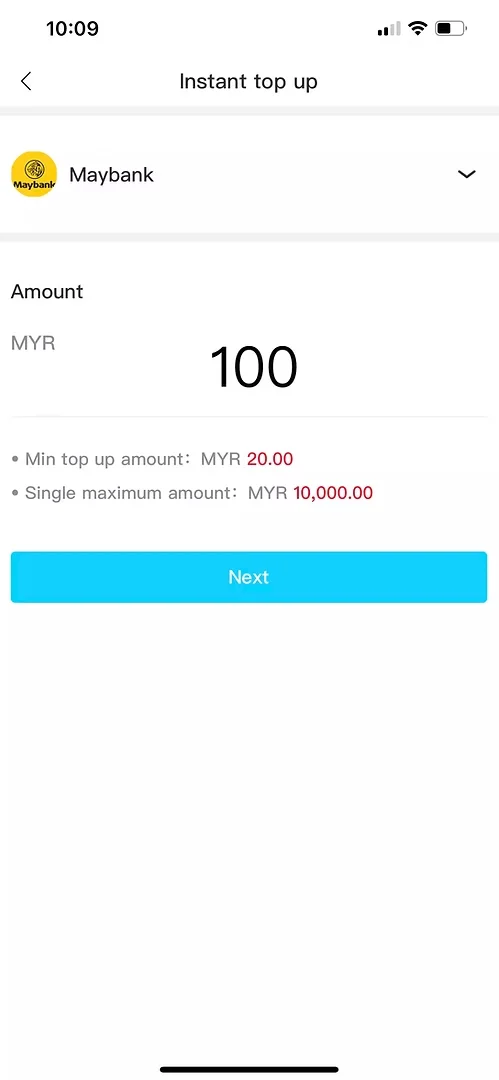
Step 3: Review the withdrawal account and recipient information before continuing.
STEP 03

Step 3: Check Your Withdrawal Information

Review the account, bank or recipient information associated with the withdrawal.

Make sure the information displayed or entered corresponds to the intended recipient before continuing.

If any required information is missing or incorrect, correct it through the appropriate account process before submitting the withdrawal.
Winbox Withdraw Tutorial Step 4 showing withdrawal amount entry
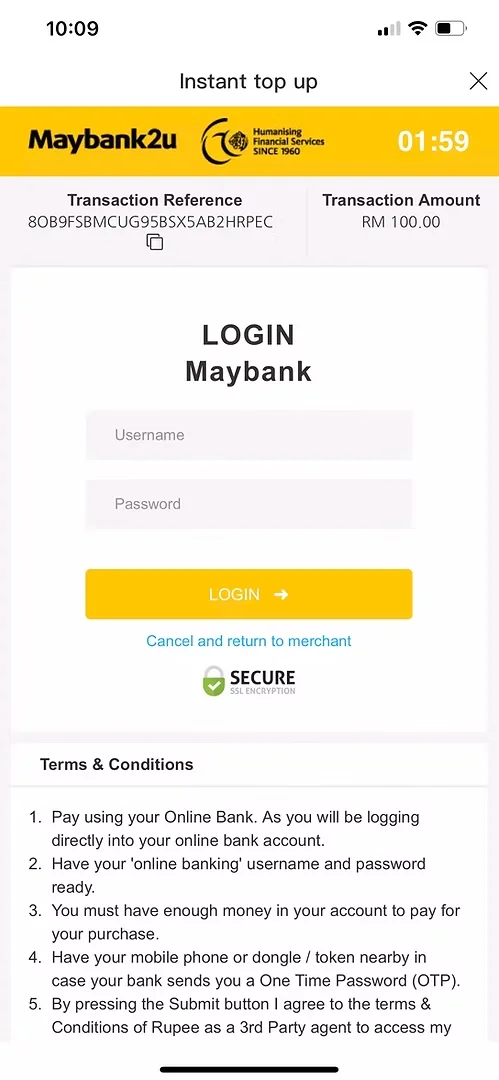
Step 4: Enter the withdrawal amount and check the displayed transaction limits.
STEP 04

Step 4: Enter the Withdrawal Amount

Enter the amount you want to withdraw.

Check any minimum or maximum withdrawal limits displayed on the current screen and make sure the amount falls within the permitted range.

If the interface displays additional transaction information, review it before selecting the next step.
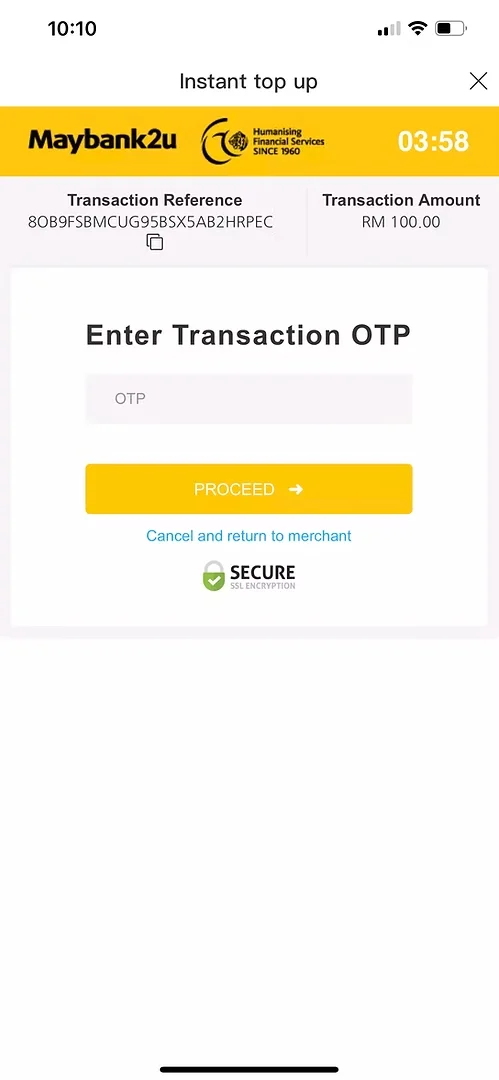
Winbox Withdraw Tutorial Step 5 showing withdrawal request review and submission
Step 5: Review the withdrawal information and submit the request.
STEP 05

Step 5: Review and Submit the Withdrawal Request

Before submitting the request, review the withdrawal amount, method and recipient information one more time.

If the platform requests additional account verification, follow the instructions displayed on the current interface.

Only submit the withdrawal after confirming that the information is correct.
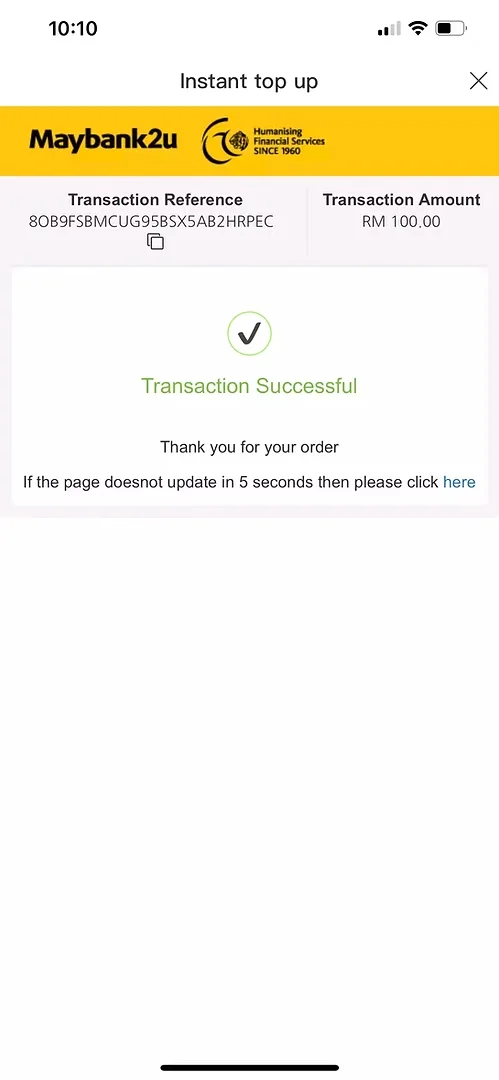
Winbox Withdraw Tutorial Step 6 showing withdrawal transaction status
Step 6: Check the withdrawal status and retain the transaction reference until completion.
STEP 06

Step 6: Check the Withdrawal Status

After submitting the request, check the transaction or withdrawal history for its current status.

Depending on the processing stage, the request may appear as pending, processing, successful, completed or another status used by the current interface.

Keep the transaction reference or order number until the withdrawal has been completed.

!

If a request remains pending, check the existing transaction before submitting another withdrawal.

What Information Should You Check Before Submitting?

A withdrawal involves information that can affect where the funds are sent, so review the transaction carefully before confirmation.

✓
Review the Transaction Details

Check the withdrawal amount, selected method, recipient or account details, displayed transaction limits and any verification instructions shown on the current screen.

!
Use the Current Account Information

Do not rely exclusively on information from an older screenshot or previous transaction. The current account interface should be treated as the primary source for the transaction you are submitting.

What Does a Pending Withdrawal Mean?

A pending withdrawal generally indicates that the submitted request has not yet reached its final transaction status.

Withdrawal Still Pending?

Keep the order number or transaction reference while the request is being processed. Avoid repeatedly submitting the same request simply because the status has not changed immediately.

!
If Assistance Is Needed

If assistance is needed, provide the relevant transaction reference and describe the issue through the published support process. Do not disclose passwords, OTPs or unnecessary authentication credentials.

Common Withdrawal Problems

01

The Withdraw Option Is Not Available

Check that you are signed in to the intended account and review the current account interface. Availability can depend on the account’s current status or requirements.

If the interface displays an outstanding verification requirement, follow the appropriate account instructions before trying again.

02

My Withdrawal Amount Is Not Accepted

Check the minimum and maximum withdrawal limits displayed on the current screen.

Make sure the amount is within the permitted range and that it has been entered in the required format.

03

My Withdrawal Is Still Pending

Keep the transaction reference and check the withdrawal history before submitting another request.

A pending status does not by itself establish that the transaction has failed.

04

My Withdrawal Information Is Incorrect

Do not submit the request if the displayed recipient, account or withdrawal information is incorrect.

Return to the relevant account section and correct the information through the intended process before continuing.

05

I Submitted the Same Withdrawal More Than Once

Check the transaction history to determine whether more than one request was created.

Avoid making additional submissions until the status of the existing requests is clear.

06

The Withdrawal Shows Completed but I Cannot Confirm Receipt

First review the transaction details and reference shown in the account.

Check the relevant receiving account through its normal interface. If the issue remains unresolved, retain the transaction reference and use the published support process so the specific transaction can be reviewed.

Withdrawal Security Checklist

Treat withdrawal information with the same care as other financial transaction details.

✓

Use the withdrawal interface reached through the intended Winbox Online Casino website or account navigation. Check recipient details before submitting each transaction, particularly if account information has recently been changed.

✓

Never send your account password, banking password, OTP or payment PIN to an unknown person.

✓

If the withdrawal page or recipient information appears different from what you expected, verify the details before continuing rather than submitting the request immediately.

!
Protect Your Withdrawal Information

Always verify the withdrawal details displayed for the current transaction before submitting the request.

Promotions and Withdrawal Conditions

Promotional offers can have their own eligibility requirements and terms. Where an offer has conditions that affect account transactions, review those conditions before participating or requesting a withdrawal.

i
Check Current Promotion Terms

Current offer information can be reviewed on Winbox Promotion .

!

Do not assume that requirements from one promotion automatically apply to another. Refer to the terms displayed for the specific offer.

Frequently Asked Questions About Winbox Withdrawals

How do I make a withdrawal?

Sign in to your account, open Top up / Withdraw, select Withdraw and follow the current instructions. Review the withdrawal method, amount and recipient information before submitting the request.

What should I check before withdrawing?

Check the withdrawal amount, recipient or account information, available withdrawal method, displayed transaction limits and any verification requirements shown by the current interface.

Why is my withdrawal pending?

A withdrawal may remain pending while the request is being processed. Keep the transaction reference and check the existing request before submitting another withdrawal.

What should I do if my withdrawal amount is not accepted?

Check the minimum and maximum limits displayed on the withdrawal screen and make sure the amount is entered within the permitted range.

Should I submit another withdrawal if the first one is pending?

Check the existing transaction first. Repeated requests can make it more difficult to identify and track the transaction that needs attention.

What should I do if my withdrawal information is wrong?

Do not continue with a new request using information you know is incorrect. Review or update the relevant account details through the intended account process before submitting the withdrawal.

Should I share an OTP or password to verify a withdrawal?

Do not send passwords, online-banking passwords, OTPs or payment PINs to unknown third parties. Follow only the verification process presented through the intended account or authorized interface.

Where do existing members log in?

Existing members can use Login Winbox to access their account before opening the withdrawal interface.

Where can I find mobile access information?

Refer to Winbox Download for the site's current mobile-access information.

Where can I check current promotions?

Current promotional information can be reviewed through Winbox Promotion .

Scroll to Top
WhatsApp Telegram