
Winbox Registration at a Glance
The registration process can be understood in five main steps:
- Open the registration page and select Sign Up or the available registration option.
- Create the requested UID and password.
- Complete any phone-number or email binding requested during account setup.
- Enter the verification code if verification is required.
- Complete registration and continue to the appropriate login or mobile-access option.
The exact interface may change over time, so button names and screen layouts can differ slightly from the screenshots in this guide.
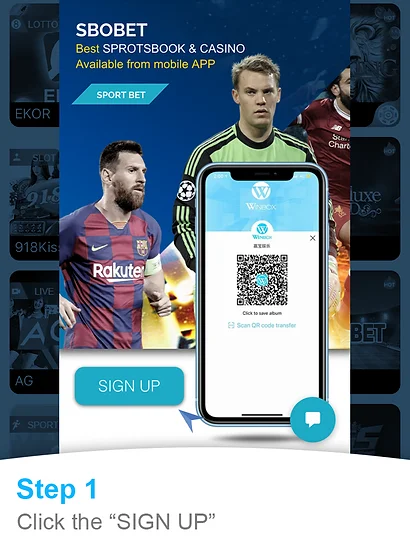
Step 1: Select Sign Up to begin the account-registration process.
Step 1: Open Winbox Register and Select Sign Up
Start by visiting Winbox Register .
Look for the Sign Up or registration option displayed on the page. Selecting it should open the account-creation interface where the required registration details can be entered.
Before proceeding, make sure you are using the intended registration page rather than an unfamiliar link received through an unsolicited message.
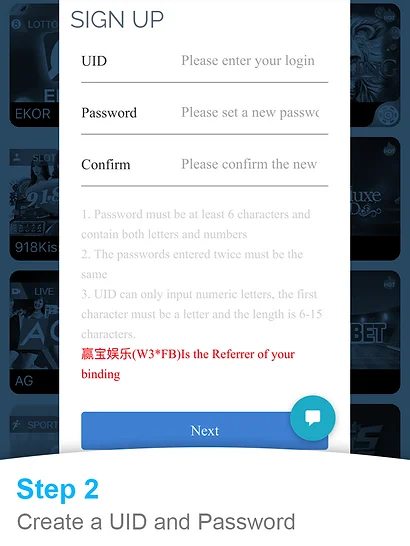
Step 2: Enter the requested UID and create a password.
Step 2: Create Your UID and Password
The registration screen may request a UID or username together with a password.
Enter the required information according to the instructions displayed on the current registration form. If a password confirmation field is provided, enter the same password again before continuing.
Before selecting Next, check your entries for typing errors.
Choosing Account Details Carefully
Use account details that you can identify later without making your password easy to guess.
Do not publish your password or share it through public comments, social-media posts or other unsecured channels. Your password should also be different from passwords used for important services such as your primary email or banking account.
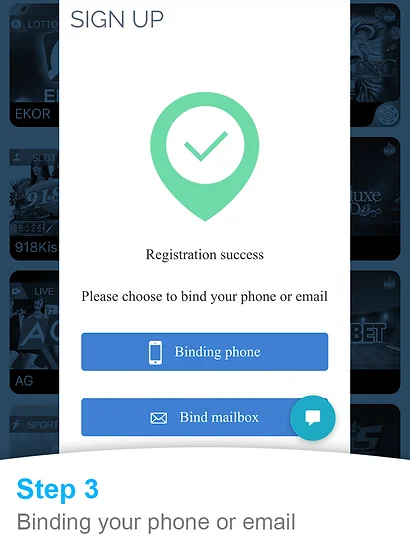
Step 3: Choose the available phone or email binding option.
Step 3: Bind a Phone Number or Email
After the initial account information has been accepted, the registration interface may provide an option to bind a phone number or email address.
Choose the method available to you and carefully check the information before continuing.
Account-binding requirements can change, so follow the instructions shown on the current registration screen rather than relying solely on an older screenshot.
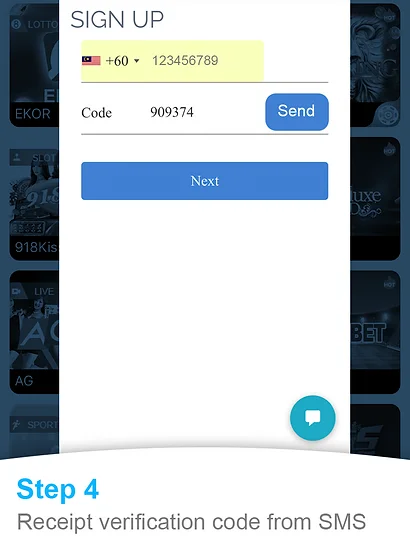
Step 4: Enter the verification code when verification is requested.
Step 4: Complete the Verification Process
If verification is required, a code may be sent to the phone number or email address associated with the registration process.
Enter the verification code into the appropriate field and continue to the next step.
What If the Verification Code Does Not Arrive?
First check that the phone number or email address was entered correctly. Allow a reasonable amount of time for the message to arrive and check the available resend option if one is provided.
Avoid repeatedly requesting codes within a very short period. If the problem continues, use the customer-support information published on the website.
Never post an active OTP or verification code publicly.
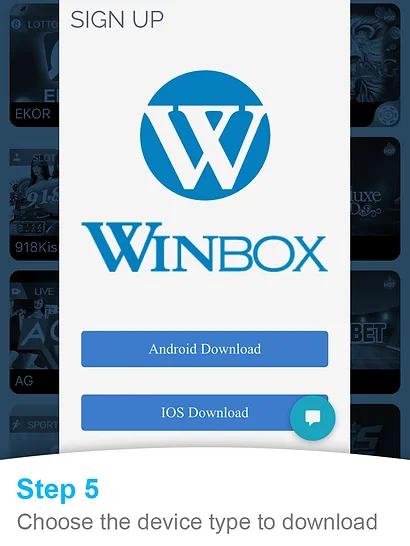
Step 5: Complete account setup and continue to the available account-access options.
Step 5: Complete Registration
Once the required registration and verification steps have been completed successfully, the account-creation process should display a confirmation or move you to the next available account option.
Check that registration has actually completed before attempting to create another account.
You can then use Winbox Login to access an existing account with the credentials created during registration.