
Winbox USDT Withdrawal Tutorial

Winbox USDT Withdrawal Tutorial banner showing USDT withdrawal channel
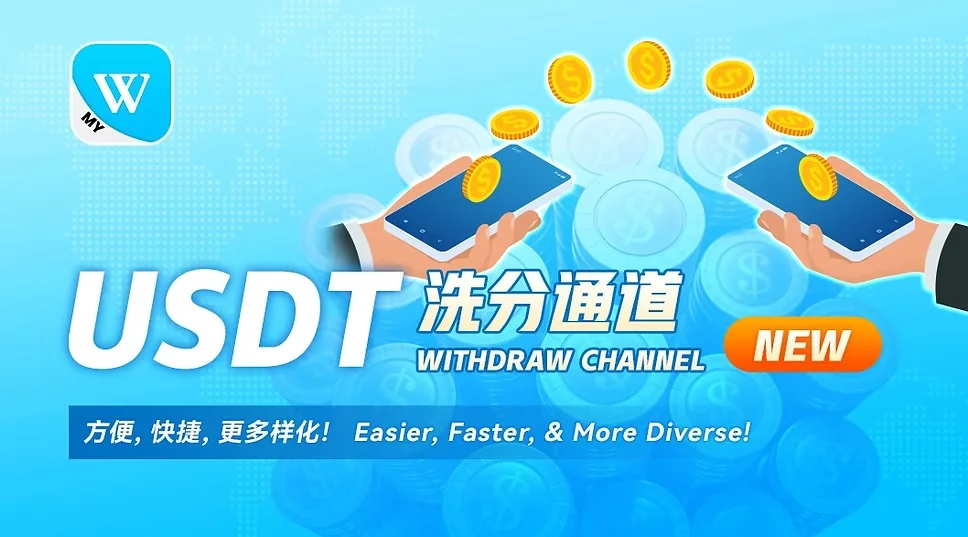
Winbox USDT Withdrawal Tutorial – Step-by-Step Guide

The Winbox USDT Withdrawal tutorial explains how to access the USDT withdrawal interface, select the required currency, enter the destination wallet information and review the withdrawal details before submitting a transaction.

The screenshots in this guide illustrate the withdrawal process shown by the tutorial interface. Available networks, limits, transaction requirements and interface layouts can change, so users should always verify the information displayed by their current account before submitting a withdrawal.

Existing members can use Winbox Login to access their account. Users who have not created an account can review Winbox Register for information about the current registration process.

✓
Quick Answer

Open the account area, select the deposit/withdrawal function, switch to the required currency and choose USDT Withdrawal. Check the network displayed by the current interface, enter the destination wallet address and withdrawal amount, review the information carefully and submit the request. After submission, check the transaction details for the current status and recorded amounts.

What Is a Winbox USDT Withdrawal?

A USDT withdrawal is a transaction process used to send an eligible account balance to a compatible external USDT wallet address.

In the tutorial screenshots provided for this guide, the withdrawal interface includes a network selector, destination address field, withdrawal amount and transaction details.

i
Network Information

The screenshots show Tron (TRC20) as the selected network. However, this should be treated as an observation from the tutorial rather than a permanent requirement.

✓
Follow the Current Withdrawal Interface

Users should follow the network and transaction information displayed by their current withdrawal interface.

For broader platform navigation, users can return to Winbox Casino , while available platform categories can be explored through Winbox Games .

What to Prepare Before a USDT Withdrawal

Before beginning a withdrawal, make sure you are signed in to the intended account and have the destination wallet information available.

01

Destination Wallet Address

Prepare the USDT wallet address to which you intend to send the funds.

Cryptocurrency addresses can be difficult to identify visually, so use a reliable copy-and-paste method where possible and carefully review the destination before submitting the transaction.

02

Compatible Network

The sending and receiving sides need to use compatible network information.

The tutorial screenshot shows Tron (TRC20), but do not select TRC20 solely because it appears in this guide. Check what the current withdrawal interface displays and confirm that the destination wallet supports the same network.

03

Withdrawal Amount

Decide how much you intend to withdraw and review any limits, fees or other information displayed by the current interface.

Do not rely on numerical limits visible in an older screenshot because these values can change.

✓
Check Before You Submit

Review the destination wallet address, network and withdrawal amount against the information displayed by the current withdrawal interface before submitting the transaction.

Winbox USDT Withdrawal Step-by-Step Guide

The following screenshots illustrate the USDT withdrawal process. Use them to understand the general navigation while treating the information displayed by your current transaction as the primary reference.
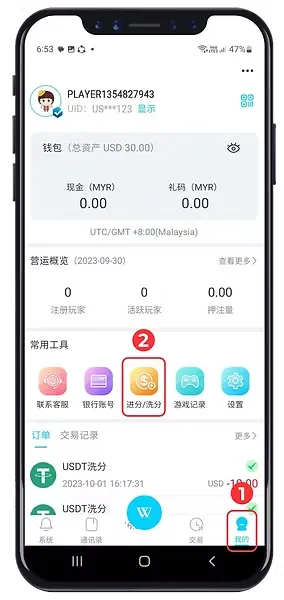
Winbox USDT Withdrawal Step 1 and 2 showing account and withdrawal menu
Step 1–2: Open the account page and access the deposit and withdrawal section.
STEP 01

Step 1: Open Your Account Page

After signing in, open the account or profile area.

The tutorial screenshot highlights the “Me” option in the main navigation.

Confirm that you are using the intended account before proceeding.

STEP 02

Step 2: Open the Deposit and Withdrawal Section

From the account page, select the deposit/withdrawal function shown in the account tools.

This opens the area containing the available transaction options.

STEP 03

Step 3: Select USD

Open the currency selector and choose USD as shown in the tutorial.

If the intended currency is already selected, the current interface may not require the same switching step.
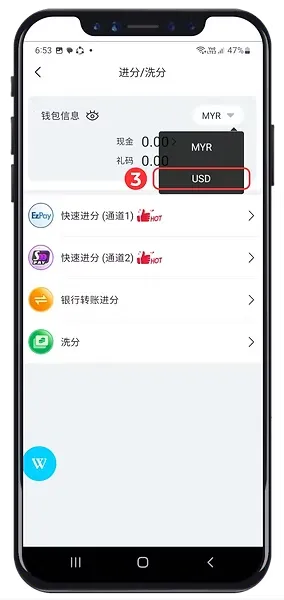
Winbox USDT Withdrawal Step 3 showing USD currency selection
Step 3: Select USD from the available currency options.
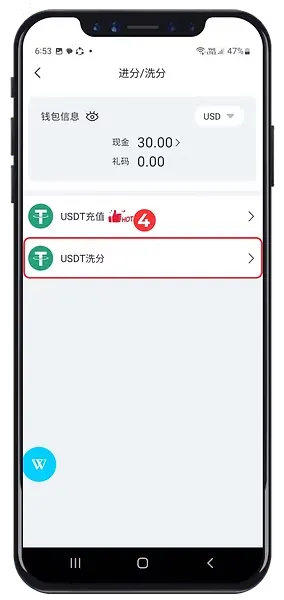
Winbox USDT Withdrawal Step 4 showing USDT withdrawal option
Step 4: Select the USDT Withdrawal option from the available transaction methods.
STEP 04

Step 4: Select USDT Withdrawal

After selecting the required currency, choose the USDT Withdrawal option.

Make sure you select withdrawal rather than the similarly named USDT deposit function.

STEP 05

Step 5: Check the Network

Review the network shown by the withdrawal interface.

The supplied screenshot displays Tron (TRC20). Before proceeding, check that the destination wallet is compatible with the network required by your current transaction.

!
Important

Do not choose a cryptocurrency network merely because it appears in this tutorial. Network options can change, and incompatible network information can create transaction problems.

STEP 06

Step 6: Enter the Destination Wallet Address

Enter or paste the destination USDT wallet address into the address field.

Check the address carefully before proceeding. Do not copy a wallet address from this tutorial, an unrelated screenshot, an old transaction or an unknown third party.

STEP 07

Step 7: Enter the Withdrawal Amount

Enter the amount you intend to withdraw.

Review the amount along with any applicable limits, remaining allowance, available balance or fee information displayed by the current interface.

STEP 08

Step 8: Review and Submit the Withdrawal

Before selecting the submission button, check the network, destination address and withdrawal amount again.

Only submit the request after confirming that the displayed transaction information corresponds with your intended withdrawal.
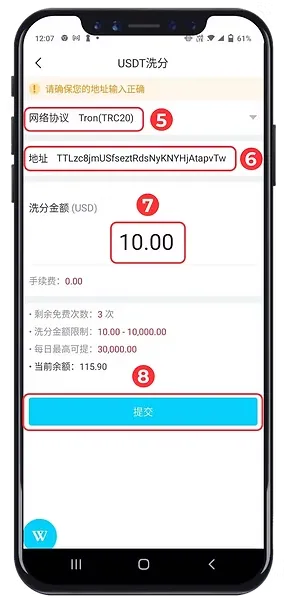
Winbox USDT Withdrawal Step 5 to 8 showing TRC20 network wallet address and withdrawal amount
Step 5–8: Review the network, enter the destination wallet address and withdrawal amount, then check the transaction details before submitting.
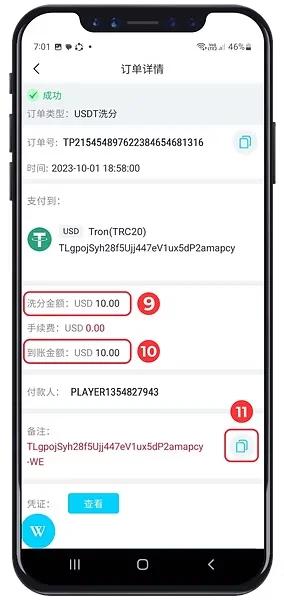
Winbox USDT Withdrawal Step 9 to 11 showing completed USDT withdrawal details
Step 9–11: Review the withdrawal amount, received amount and destination information shown in the transaction details.
STEP 09

Step 9: Review the Withdrawal Amount

After submission, open or review the transaction details.

The tutorial screenshot shows the withdrawal amount as part of the transaction record. Compare the displayed information with the transaction you intended to submit.

STEP 10

Step 10: Check the Received Amount

Review the amount shown by the transaction details after any displayed fee or transaction adjustment.

Use the values presented by the current transaction rather than assuming that an older example represents every withdrawal.

STEP 11

Step 11: Verify the Destination Information

Review the destination information recorded in the transaction details.

The transaction record can help you confirm which destination was associated with the submitted withdrawal.

Do not publicly share complete wallet or transaction information unnecessarily when requesting general assistance.

Why the Network and Wallet Address Matter

The network and destination address are critical pieces of information in a cryptocurrency withdrawal.

01
Check the Withdrawal Network

The tutorial screenshot shows Tron (TRC20). This does not establish that TRC20 will always be the available or appropriate option.

Before submitting a withdrawal, compare the network displayed by the withdrawal interface with the network supported by the receiving wallet.

02
Review the Destination Wallet Address

The destination address also deserves careful review. Cryptocurrency addresses are long strings where small differences can be difficult to notice visually.

Use the destination information provided by your intended wallet, check the copied address and confirm the transaction details before submitting the withdrawal.

✓
Verify Both Before Submitting

Check that the network displayed by the withdrawal interface is compatible with the receiving wallet, then carefully review the destination address before submitting the transaction.

What Should You Check Before Submitting?

Before selecting the final submission button, review three pieces of information:

01

Network

Confirm that the network selected for the withdrawal corresponds with the network supported by the destination wallet.

02

Wallet Address

Check that the destination address is the one you intended to use.

03

Withdrawal Amount

Confirm the amount and review any fee, balance or limit information currently displayed.

✓
Final Check Complete

Once these details have been checked, follow the current interface to submit the transaction.

What Does the Withdrawal Status Mean?

The transaction record provides information about the state of the submitted withdrawal.

A submitted request should not automatically be treated as completed simply because the submission step has finished.

✓
Check the Current Transaction Status

Check the current transaction details and status displayed by the account.

!
If the Withdrawal Is Still Processing

If the withdrawal remains under processing or otherwise does not show a final result, avoid repeatedly creating new withdrawals simply because the first transaction has not immediately changed status.

Common Winbox USDT Withdrawal Problems

01

I Cannot Find the USDT Withdrawal Option

Check the current deposit/withdrawal interface and selected currency.

The location and availability of transaction options can change, so use the current account interface rather than relying entirely on an older screenshot.

02

I Cannot Select USD

Review the currencies currently available through your account.

The presence of USD in this tutorial does not establish that every account interface will always display exactly the same currency options.

03

My Wallet Uses a Different Network

Do not submit the withdrawal until the network information is clear.

Check the network required by the current withdrawal interface and confirm that the receiving wallet supports compatible network information.

04

My Wallet Address Is Not Accepted

Check that the address was copied completely and that it is appropriate for the selected network.

Do not repeatedly change characters manually simply to make an address pass validation.

05

My Withdrawal Amount Is Not Accepted

Review any minimum, maximum, balance, fee or other amount information displayed by the current interface.

Use the current transaction requirements rather than numerical values from an older tutorial.

06

My USDT Withdrawal Is Still Processing

Check the current transaction record before creating another withdrawal.

A transaction that has not immediately displayed a completed status should not automatically be treated as unsuccessful.

USDT Withdrawal Security Checklist

Cryptocurrency transactions require careful handling of wallet and account information.

✓
Verify the Transaction Details

Before submitting a withdrawal, verify the destination wallet address, selected network and withdrawal amount.

✓
Protect Sensitive Account Information

Never provide an account password, online-banking password, OTP, payment PIN, cryptocurrency wallet seed phrase, recovery phrase or private key to unknown third parties.

✓
Keep Wallet Credentials Private

A wallet seed phrase or private key is not required for a normal tutorial explaining how to navigate a withdrawal interface.

✓
Follow the Current Interface

If the current withdrawal screen differs from this guide, follow the information displayed by the intended account interface and use the published support process if clarification is required.

Account Access and Platform Navigation

Real transaction access begins from the appropriate account rather than from the tutorial itself.

Existing members can use Winbox Login to access their account. New users can review Winbox Register for information about creating an account.

Users who want to explore the available platform categories can continue through Winbox Games .

For broader account information and platform navigation, return to Winbox Casino .

Frequently Asked Questions About Winbox USDT Withdrawal

Find answers to common questions about the USDT withdrawal process, network selection, wallet addresses, transaction status, account access and platform navigation.

What is Winbox USDT Withdrawal?

Winbox USDT Withdrawal refers to the USDT withdrawal process available through the account transaction interface. The tutorial screenshots show network selection, wallet-address entry, withdrawal amount and transaction details.

How do I withdraw USDT?

Open the account area, access the deposit/withdrawal interface, select the required currency and choose USDT Withdrawal. Review the network, enter the destination wallet address and amount, check the information and follow the current interface to submit the request.

Which network should I use?

Use the network required by the current withdrawal interface and confirm that the receiving wallet supports compatible network information. The tutorial screenshot shows Tron (TRC20), but that should not be treated as a permanent requirement.

What wallet address should I enter?

Enter the destination address provided by the wallet to which you intend to send the USDT. Check the address and network carefully before submitting the transaction.

Why does this tutorial show TRC20?

The supplied tutorial screenshot displays Tron (TRC20) in the network field. This describes the example shown in the tutorial rather than guaranteeing that the same network will always be displayed.

Can I copy a wallet address?

Using a reliable copy function can reduce manual typing errors, but the copied address should still be checked against the intended destination before the withdrawal is submitted.

What should I do if I enter the wrong wallet address?

If the transaction has not been submitted, correct the information before proceeding. If it has already been submitted, review the current transaction status and use the platform's published support process rather than submitting additional transactions in an attempt to correct the first one.

Why is my USDT withdrawal still processing?

Check the transaction status displayed by the account. Do not assume that a request has failed solely because a final status is not displayed immediately.

Should I share my wallet seed phrase with support?

No. Do not provide a wallet seed phrase, recovery phrase, private key, account password, online-banking password, OTP or payment PIN to unknown third parties.

Where can existing members sign in?

Existing members can use Winbox Login to access their account before opening the withdrawal interface.

How can a new user create an account?

Users who have not created an account can review Winbox Register for information about the current registration process.

Where can I explore the available games?

Users can refer to Winbox Games for information about the available platform categories and related pages.

Scroll to Top
WhatsApp Telegram