Winbox USDT Deposit Tutorial
Winbox USDT Deposit Tutorial – Step-by-Step USDT Top Up Guide

The Winbox USDT Deposit tutorial explains how to access the USDT deposit interface, select the appropriate account currency, enter a deposit amount and review the wallet information displayed for the transaction.
The screenshots in this guide illustrate the deposit process shown by the current tutorial interface. Payment options, network information, limits and screen layouts can change, so users should always verify the information displayed for their own transaction before transferring funds.
Existing members can use Winbox Login before starting the process. Users who have not created an account can review Winbox Register for the current registration process.
To make a USDT deposit, open the account area, enter the deposit/withdrawal section, switch to the required currency, select USDT Deposit and enter the requested amount. On the transaction page, carefully check the displayed network, amount and destination address before making any transfer. Never reuse an old address unless the current transaction interface explicitly instructs you to do so.
What Is a Winbox USDT Deposit?
A USDT deposit is a funding process that uses Tether (USDT) rather than a conventional bank-transfer method.
In the tutorial interface shown on this page, the process includes selecting USD, opening the USDT deposit option, entering an amount and then reviewing the transaction details generated for that deposit.
Those details can include a network designation, deposit amount, QR code and wallet address.
The transaction information shown on the current deposit screen should be treated as the primary reference. Do not assume that an address, network or other transaction detail from an older screenshot remains valid for a new transaction.
Users looking for other platform sections can explore Winbox Games , while mobile-access information is available through Winbox Download .
What to Check Before Making a USDT Deposit
Before transferring USDT, sign in to the intended account and open the current deposit interface.
Check these details carefully:
Selected Currency
Confirm that you have selected the currency required by the current USDT deposit process.
Deposit Amount
Enter the intended amount and review any minimum, maximum or other limits displayed by the current interface.
USDT Network
Check the network shown for the transaction. The tutorial screenshot displays TRC20, but this should not be treated as a permanent network specification.
Always use the network displayed for your current transaction.
Deposit Address
Use the destination address generated or displayed for the current transaction. Check it carefully before transferring funds.
QR Code
If you use the displayed QR code instead of manually copying the address, confirm that your wallet or transfer application has interpreted the transaction information correctly before approving the transfer.
Review the selected currency, deposit amount, USDT network, destination address and QR-code information before approving the transaction.
Winbox USDT Deposit Step-by-Step Guide
The screenshots below illustrate the USDT deposit process. The interface, available currencies, transaction limits, networks and other details may change, so use the screenshots as a guide and verify the information displayed for your current transaction.
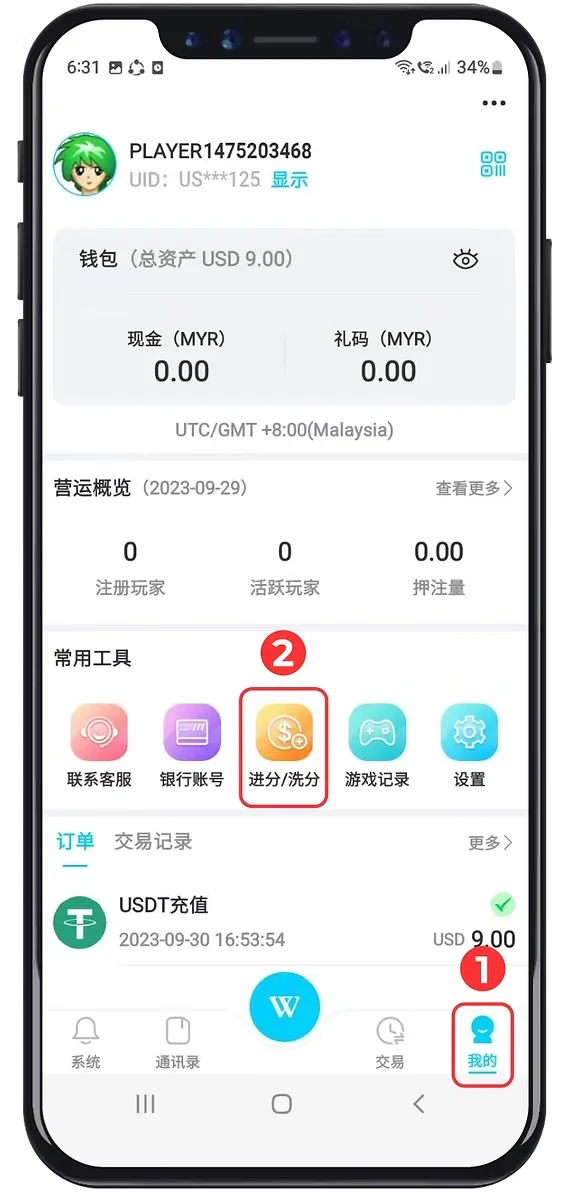
Step 1: Open Your Account Page
After signing in, open the account or profile area from the main navigation.
In the tutorial screenshot, this is accessed through the “Me” option.
Confirm that you are using the intended account before continuing.
Step 1: Open the account page by selecting “Me” from the main navigation.
Step 2: Open the Deposit and Withdrawal Section
From the account page, select the deposit/withdrawal function shown in the account tools.
This opens the interface containing the available transaction methods.
Step 2: Select the deposit and withdrawal option from the account page.
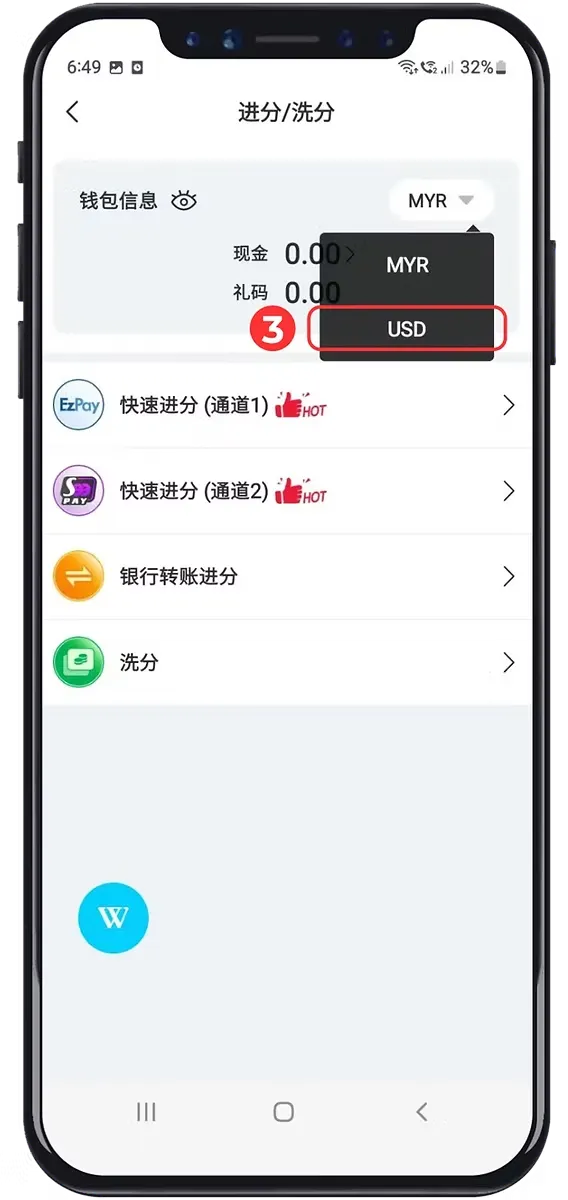
Step 3: Select USD
Open the currency selector and choose USD as shown in the tutorial interface.
If the account is already using USD, the interface may not require the same currency-change step.
Step 3: Select USD from the available currency options.
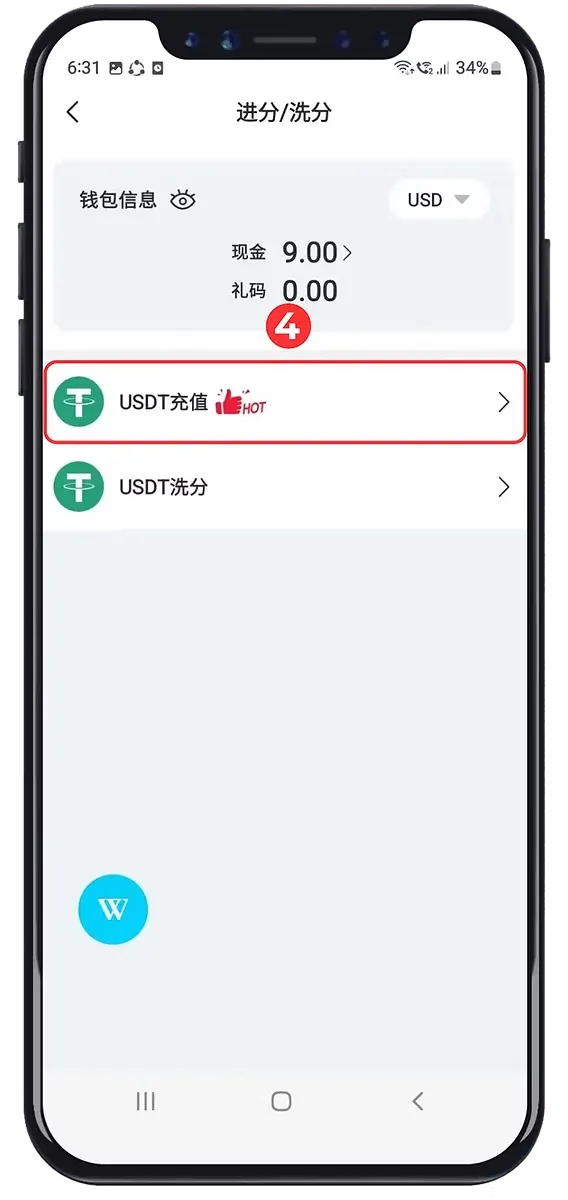
Step 4: Select USDT Deposit
After the appropriate currency is selected, review the available transaction methods and select the USDT Deposit option.
Make sure you select the deposit function rather than the withdrawal function.
Step 4: Select the USDT deposit option from the available transaction methods.
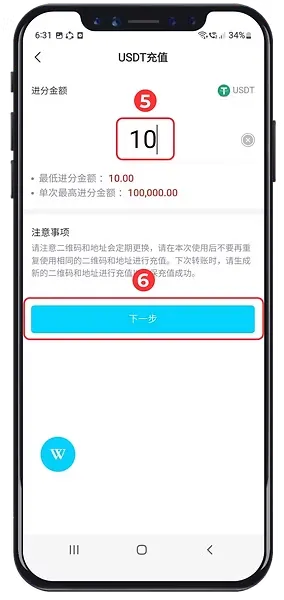
Step 5: Enter the USDT Deposit Amount
Enter the intended deposit amount in the amount field.
Review any minimum, maximum or other transaction requirements displayed by the current interface. Do not rely solely on the limits visible in an older screenshot because these may change.
Step 5: Enter the intended USDT deposit amount.
Step 6: Continue to the Transaction Details
After reviewing the amount and current transaction information, select Next to continue.
Check the amount again before proceeding to the transaction details.
Step 6: Review the amount and select Next to continue.
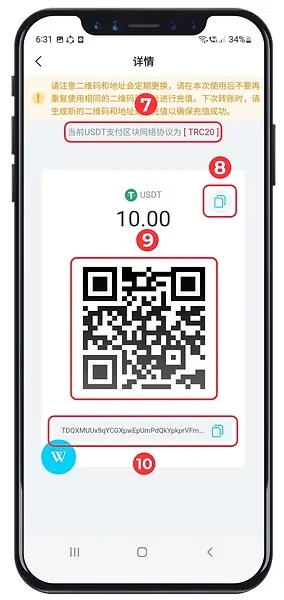
Step 7: Check the USDT Network
Review the network displayed on the transaction page before making a transfer.
The tutorial screenshot identifies TRC20, but users should use the network displayed for their current transaction rather than assuming the same network will always apply.
Using an incompatible network can create transaction problems, so the network should be checked before funds are sent.
Step 7: Check the USDT network displayed for the current transaction.
Step 8: Review the Deposit Amount
Check the amount displayed on the transaction-details screen and confirm that it corresponds with the transaction you intended to make.
Do not proceed merely because a QR code or address has appeared.
Step 8: Review the USDT amount displayed for the transaction.
Step 9: Review the QR Code
The transaction interface may provide a QR code for the current USDT deposit.
If you scan it with a compatible wallet or transfer application, review the resulting transaction information before authorizing any transfer.
Step 9: Use the displayed QR code where appropriate and verify the transaction information before transfer.
Step 10: Check the USDT Deposit Address
The transaction page also displays a wallet address that can be copied where appropriate.
Check the address against the current transaction screen before sending funds. Avoid manually typing a long cryptocurrency address when a reliable copy function is available, and verify the copied value before approving the transfer.
Do not assume that an address from a previous deposit remains appropriate for a new transaction.
Step 10: Check and copy the USDT address displayed for the current deposit transaction.
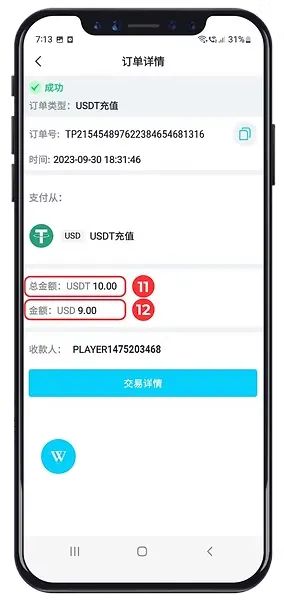
Step 11: Check the Recorded Top-Up Amount
After the transaction is reflected in the account interface, review the recorded top-up amount.
The displayed amount should be checked against the transaction you intended to make.
Step 11: Review the top-up amount recorded in the transaction details.
Step 12: Check the Received Amount
Review the received amount and transaction status displayed by the account.
A transaction should not be treated as completed merely because funds were sent from an external wallet. Use the current account transaction status to determine what the platform is reporting.
Step 12: Review the received amount and transaction status shown by the account.
USDT Network and Wallet Address Safety
The network and destination address are two of the most important pieces of information in a cryptocurrency transaction.
The screenshot used in this tutorial displays TRC20. That observation describes the tutorial screenshot; it does not establish that every future deposit will use TRC20.
For each new deposit, check the current transaction page before sending funds.
A wallet address should also be verified for the current transaction. Do not copy an address from this tutorial, another website, an old screenshot or an unrelated message and assume that it belongs to your present deposit.
This tutorial should explain where to find transaction information, not provide a reusable cryptocurrency address. The destination address shown in a screenshot should never be presented as a permanent deposit address.
That distinction is useful both for users and for making your page materially more useful than the competitor.
What to Do If a USDT Deposit Is Pending
If a transfer has been made but the account does not yet display the expected result, first review the current transaction status rather than immediately repeating the deposit.
Check the transaction amount, selected network, destination address and any transaction identifier available from the wallet or transfer service you used.
Do not make another transfer simply because the first transaction does not immediately appear as completed.
If assistance is required, retain the relevant transaction information and use the platform’s published support process.
Common Winbox USDT Deposit Problems
I Cannot Find the USDT Deposit Option
Check the current deposit/withdrawal interface and selected currency. Available transaction methods and interface layouts can change over time.
I Cannot Find USD in the Currency Menu
Review the currency options currently displayed by the account. An older screenshot does not establish which currencies will always be available.
The Deposit Amount Is Not Accepted
Review any minimum, maximum or other amount requirements displayed by the current deposit screen and make sure the entered amount complies with the current interface.
The Network Is Different From This Tutorial
Use the network displayed for your current transaction. Do not select TRC20 solely because it appears in this tutorial.
The Wallet Address Is Different From an Older Deposit
Use the transaction information generated or displayed for the current deposit. Do not assume an address from an earlier transaction remains valid.
My USDT Deposit Is Still Pending
Review the current transaction status and relevant transaction information before taking further action. Avoid repeatedly creating new deposits solely because the first one has not yet displayed a completed status.
Account and Platform Navigation
The USDT tutorial is only one part of the site’s account guidance.
Existing members can use Winbox Login to access their account, while new users can review Winbox Register for registration information.
Users looking for the available platform categories can continue to Winbox Games , while Winbox Download provides information about mobile access.
Information relating to the platform’s agent section is available through Winbox Agent . For broader platform navigation and account information, return to Winbox .
Frequently Asked Questions About Winbox USDT Deposit
Find answers to common questions about the USDT deposit process, transaction networks, wallet addresses, account access and related platform information.
What is a Winbox USDT Deposit?
A Winbox USDT Deposit is a deposit process using USDT through the transaction interface. The tutorial shown here includes currency selection, amount entry, network information, a QR code and a destination address.
How do I make a USDT deposit?
Open the account area, access the deposit/withdrawal section, select the required currency and choose the USDT deposit option. Enter the amount and review all transaction information displayed before making a transfer.
Which network should I use for a USDT deposit?
Use the network displayed for your current transaction. The tutorial screenshot shows TRC20, but that should not be treated as a permanent network requirement.
Is the USDT address always the same?
Do not assume that it is. Use the address displayed for the current transaction and verify it before sending funds.
Can I scan the QR code to make the transfer?
The tutorial interface displays a QR code for the transaction. If you use it with a compatible wallet or transfer application, verify the resulting address, network and transaction details before approving the transfer.
What happens if I select the wrong network?
Network compatibility matters when transferring cryptocurrency. If the selected network does not correspond with the transaction information displayed by the receiving interface, do not proceed until the details are clear.
Why is my USDT deposit still pending?
A pending status can mean that the transaction has not yet reached the completed state shown by the account interface. Review the transaction information and current status before creating another deposit.
Where can existing members sign in?
Existing members can use Winbox Login to access their account before opening the deposit interface.
How can a new user create an account?
New users can review Winbox Register for the current account-registration process.
Where can I find other platform tutorials and features?
Users can explore Winbox Games for game-related pages, Winbox Download for mobile-access information, and Winbox Agent for information about the agent section.