
TOP UP METHODS

Winbox Top Up Methods – Bank Transfer & Instant Top Up Guide

The Winbox Top Up Methods guide explains the available top-up processes and how to complete them step by step. This guide covers Bank Transfer and Instant Top Up, including bank selection, amount entry, receipt submission and transaction confirmation.

Before starting, make sure you are signed in to the correct account and review the payment information displayed on the current top-up screen. Available banks, transaction limits and processing steps can change, so the information shown in your account should take priority over older screenshots.

Existing members can use Winbox Login to access their account before following the steps below. New users who do not yet have an account can review Winbox Register first.

Winbox Top Up Methods at a Glance

Two top-up processes are covered in this guide:

01

Bank Transfer

Bank Transfer involves selecting an available bank, entering the required amount and transferring the funds using the payment details displayed for the transaction.

Depending on the current process, you may then need to upload a transfer receipt before submitting the request for review.

02

Instant Top Up

Instant Top Up provides a more direct payment flow through the available banking interface. After selecting a supported bank and entering the amount, you may be redirected to the relevant online-banking payment process.

Follow the instructions displayed during the transaction and confirm the payment details before continuing.

Bank Transfer or Instant Top Up: What’s the Difference?

Both methods are designed for adding funds to an account, but their transaction flows are different.

Method Bank Transfer Instant Top Up
Bank selection Required Required
Enter top-up amount Yes Yes
Manual bank transfer May be required Usually completed through the payment flow
Receipt upload May be required Usually not part of the same manual process
Online banking interface Depends on the process Commonly used
Confirmation Review the transaction status Review payment confirmation
Important

The exact options available to an account may vary. Always follow the instructions displayed on the current top-up interface.

Winbox Bank Transfer User Guide

The Bank Transfer process can be completed by following the current instructions displayed in the account. The screenshots below illustrate the general process.
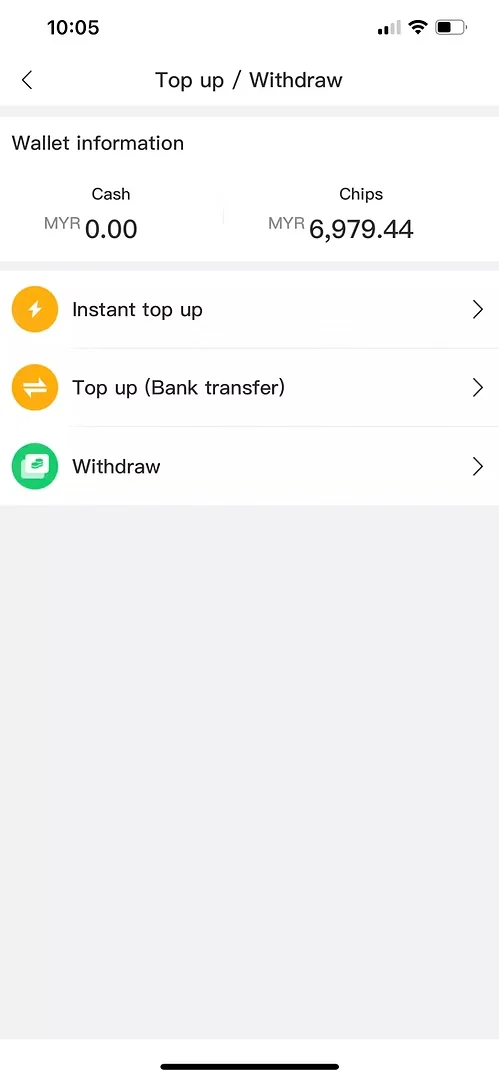
STEP 1 Winbox bank transfer Step 1 showing Top up Bank transfer option
Step 1: Select Top up (Bank transfer) from the Top up / Withdraw menu.
01

Step 1: Select Top Up (Bank Transfer)

Open the Top up / Withdraw section from your account.

Select Top up (Bank transfer) to open the bank-transfer interface.

Make sure you have selected the correct payment method before continuing to the next step.
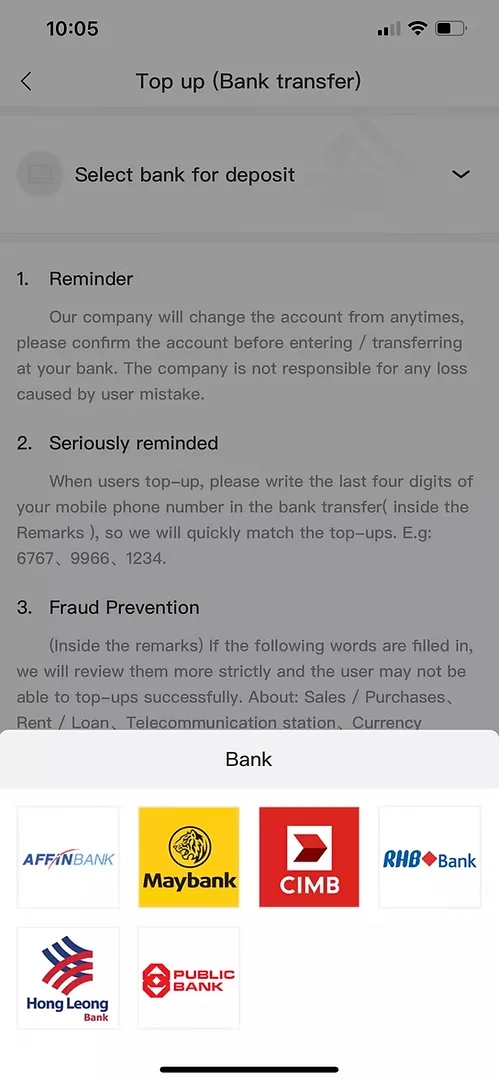
STEP 2 Winbox bank transfer Step 2 showing bank selection
Step 2: Select an available bank for the bank-transfer top up.
02

Step 2: Select an Available Bank

Open the bank-selection menu and choose one of the banks currently available for the transaction.

The list of supported banks may change, so use the options displayed on the current payment screen rather than relying solely on an older screenshot.

After choosing a bank, review any reminders or transfer instructions displayed on the page.
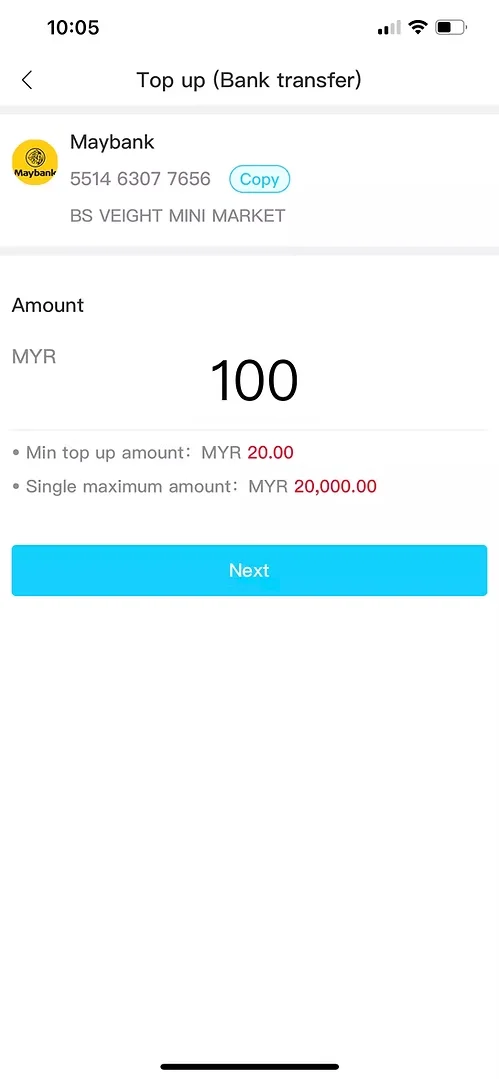
STEP 3 Winbox bank transfer Step 3 showing amount entry
Step 3: Enter the required top-up amount and review the transaction details.
03

Step 3: Enter the Top-Up Amount

Enter the amount you want to transfer.

Before selecting Next, check the minimum and maximum amounts displayed on the current interface and make sure the entered amount falls within the permitted range.

Also review the recipient or bank information presented for the transaction before making a transfer.

STEP 4 Bank transfer receipt example for Winbox top up
Step 4: Complete the transfer using the payment information displayed for the current transaction.
04

Step 4: Complete the Bank Transfer

Use the payment information displayed for the current transaction to complete the transfer through your banking service.

Important

Payment information can change. Do not assume that account details shown in an older screenshot or used for a previous transaction are still current.

Verify the recipient details against the current top-up screen before transferring funds.

After completing the transfer, retain the transaction receipt or confirmation if the system requires proof of payment.
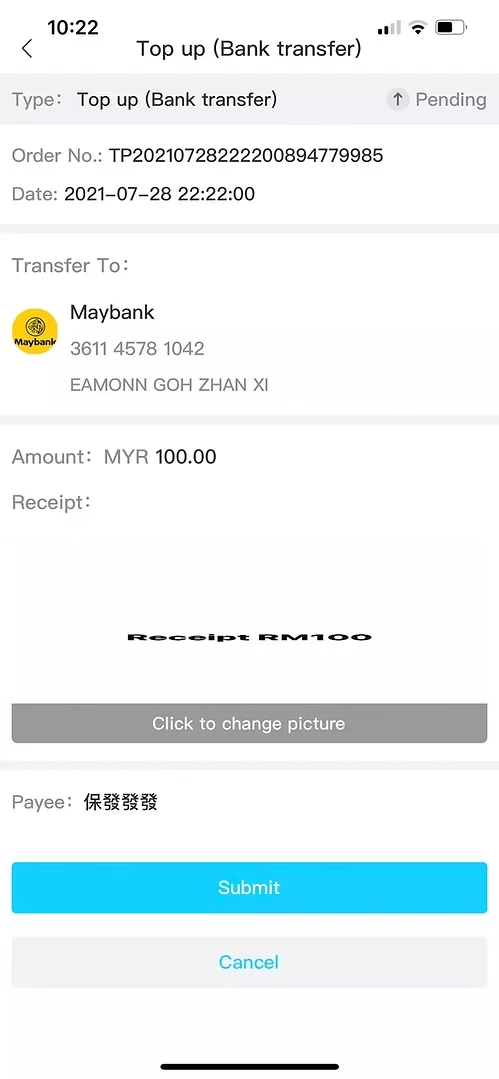
STEP 5 Winbox bank transfer Step 5 showing receipt upload and submit screen
Step 5: Upload the appropriate transfer receipt and submit the transaction for review.
05

Step 5: Upload the Transfer Receipt

If the transaction requires proof of payment, return to the relevant top-up screen and upload the requested receipt.

Check that the receipt corresponds to the transaction you are submitting and that the necessary payment information is visible.

Review the amount and other transaction details before selecting Submit.
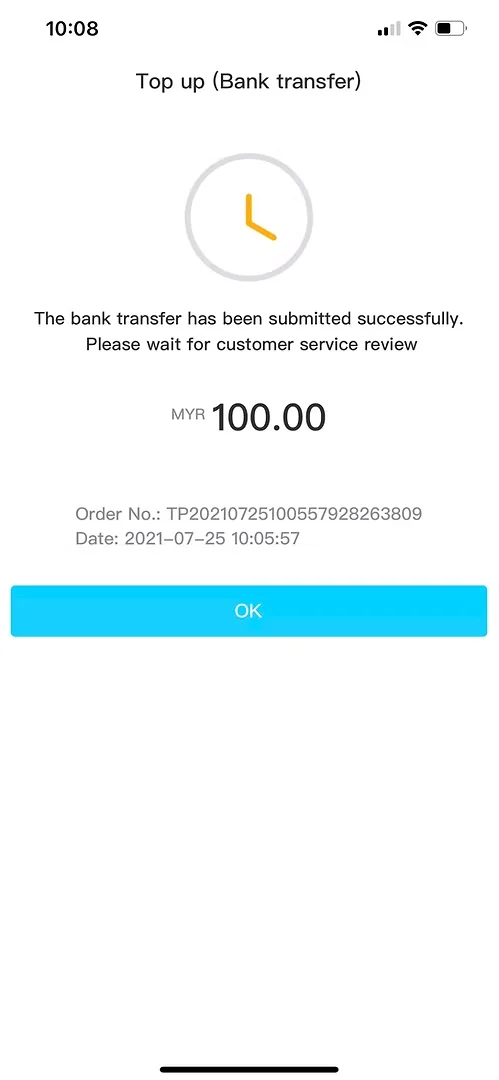
STEP 6 Winbox bank transfer Step 6 showing successful top-up submission
Step 6: Check the bank-transfer submission status and retain the transaction reference.
06

Step 6: Check the Submission Status

After submission, the interface may show that the bank-transfer request has been received and is pending review.

Avoid submitting the same transaction repeatedly while an existing request is still being processed.

Keep the relevant order number or transaction reference until the top-up has been completed or the issue has been resolved.

Winbox Instant Top Up User Guide

Instant Top Up follows a different flow from a manual bank transfer. Depending on the selected bank and current payment system, the transaction may continue through an online-banking interface.
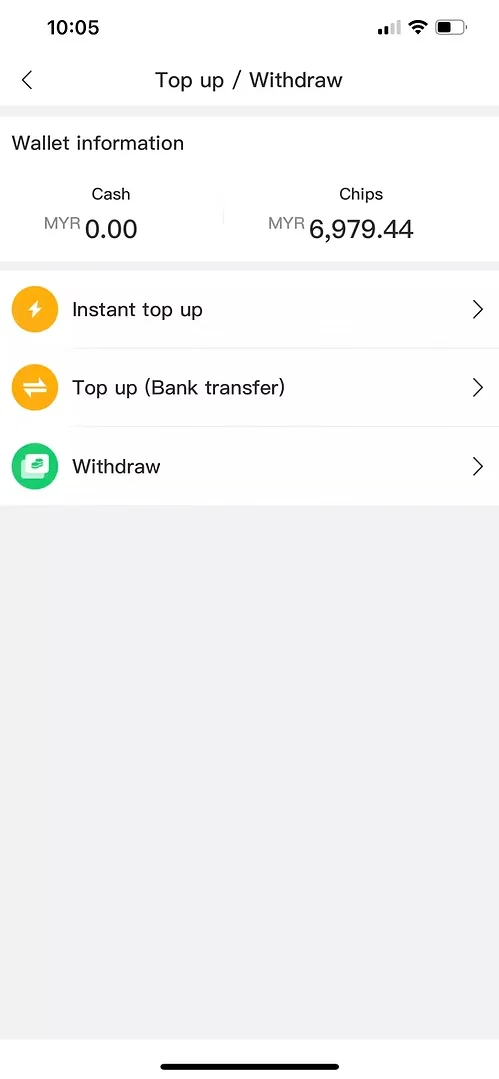
STEP 1 Winbox Instant Top Up Step 1 showing Instant top up option
Step 1: Select Instant top up from the Top up / Withdraw menu.
01

Step 1: Select Instant Top Up

Open the Top up / Withdraw section and select Instant top up.

This opens the relevant payment interface where you can select a bank and enter the transaction amount.
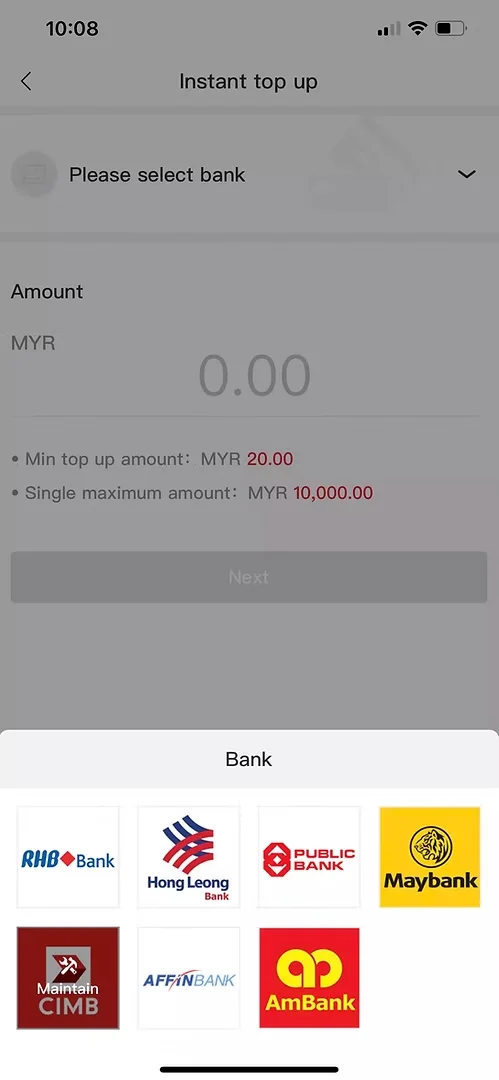
STEP 2 Winbox Instant Top Up Step 2 showing bank selection
Step 2: Select an available bank for Instant Top Up.
02

Step 2: Select Your Bank

Open the bank-selection menu and choose an available bank.

Only select an option that is currently displayed in the payment interface. Bank availability can change.
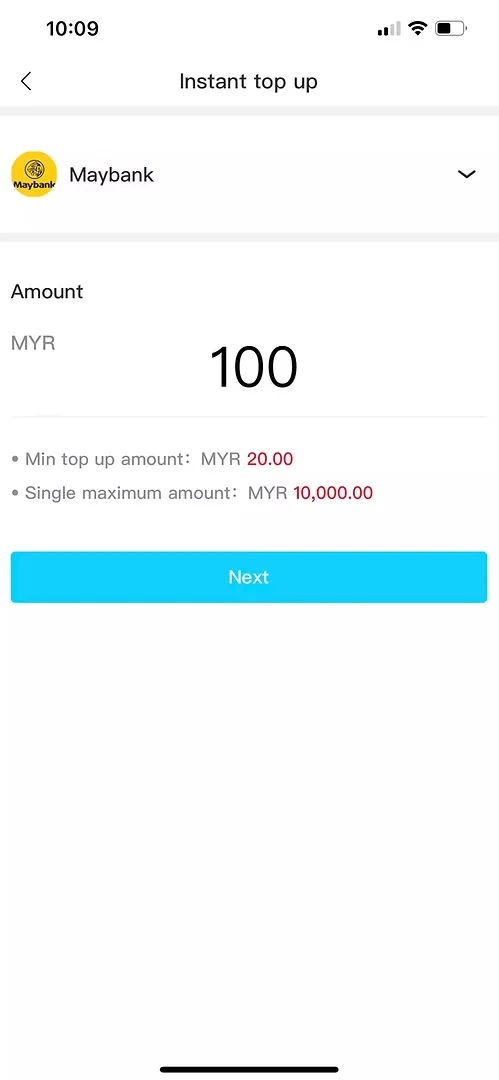
STEP 3 Winbox Instant Top Up Step 3 showing MYR amount entry
Step 3: Enter the Instant Top Up amount and continue to the payment process.
03

Step 3: Enter the Top-Up Amount

Enter the required amount and check the transaction limits shown on the screen.

Review the amount carefully before selecting Next.
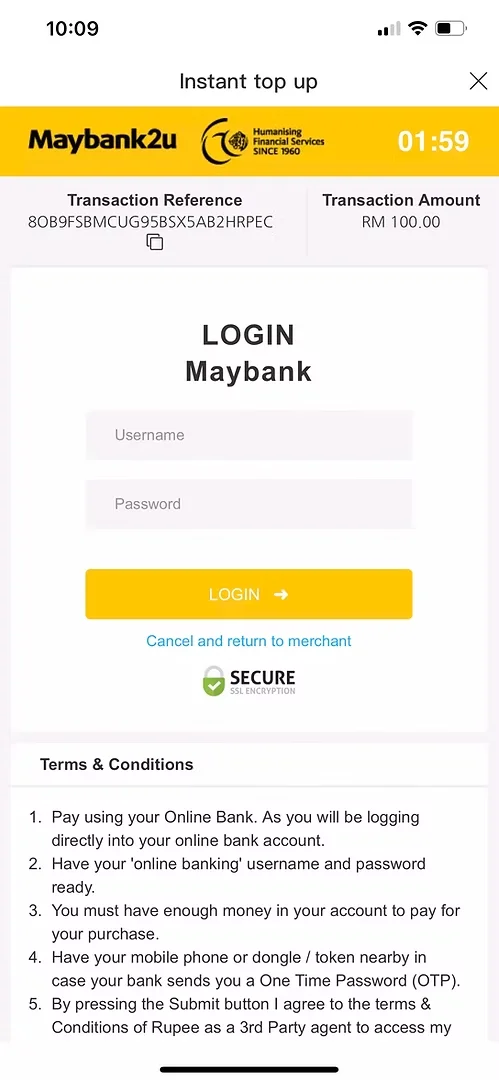
STEP 4 Winbox Instant Top Up Step 4 showing online banking payment page
Step 4: Continue through the selected online-banking payment interface.
04

Step 4: Continue to the Online Banking Interface

After confirming the amount, you may be directed to an online-banking payment interface associated with the selected bank.

Check that the transaction amount and payment information are correct before continuing.

Security Reminder

Enter banking credentials only within the intended bank or authorized payment interface. Do not send passwords or OTPs through messages or to unknown third parties.
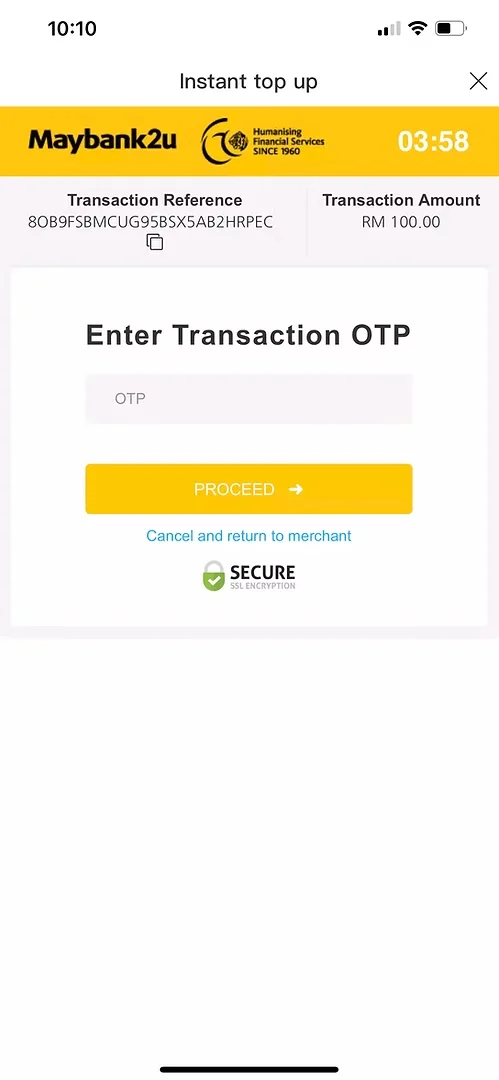
STEP 5 Winbox Instant Top Up Step 5 showing transaction OTP verification
Step 5: Complete the verification requested by the selected bank.
05

Step 5: Complete Bank Verification

Depending on the bank, additional authentication such as an OTP or another bank-approved verification method may be required.

Follow the instructions provided by your bank.

Protect Your OTP

Never publish, screenshot for public sharing or send an active OTP to an unknown person.
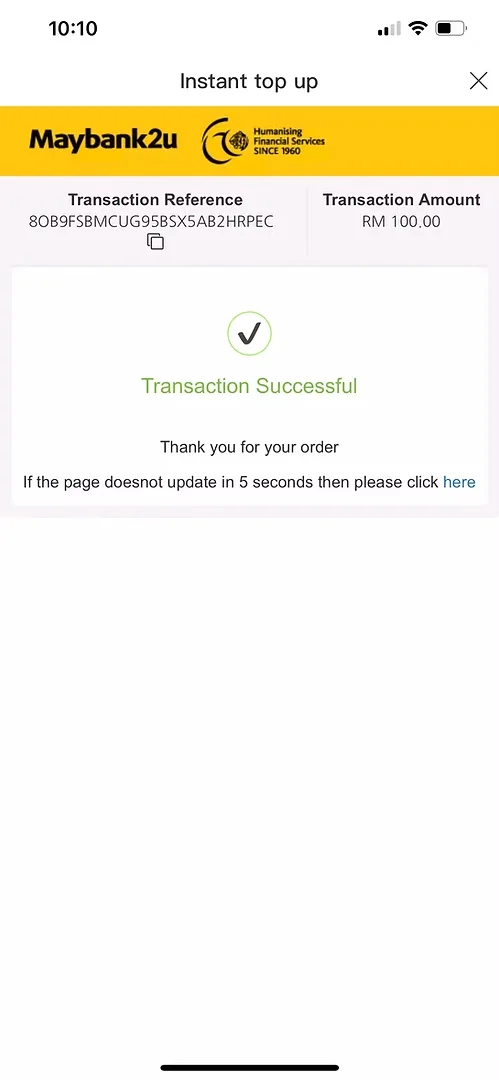
STEP 6 Winbox Instant Top Up Step 6 showing successful transaction confirmation
Step 6: Review the payment result and confirm the transaction status.
06

Step 6: Confirm the Transaction Result

After the banking process has been completed, review the transaction result displayed on the payment interface or account.

Keep the transaction reference until the payment status has been confirmed.

Payment Status

If the banking transaction appears successful but the account status has not updated, avoid immediately repeating the payment. Check the existing transaction first.

What to Check Before Making a Top Up

Before starting a transaction, confirm that you are signed in to the intended account and have selected the correct payment method.

Before You Continue

Check the currently displayed minimum and maximum transaction limits, available banks, recipient information and top-up amount before confirming a payment.

!
Payment Information Can Change

Payment information can change. Use the details generated for the current transaction rather than automatically reusing information from an earlier payment.

If you are visiting the platform for the first time, you can return to Winbox Casino for the main navigation and account information.

What to Do If a Top Up Is Pending

A pending status does not necessarily mean that the transaction has failed.

⏱
Transaction Still Pending?

Keep the order number, transaction reference and relevant payment confirmation while the transaction is being reviewed.

Before making another payment, check whether the existing transaction is still pending. Repeating the same payment unnecessarily can make transaction tracking more difficult.

If Assistance Is Required

If assistance is required, provide the relevant transaction reference and explain which step of the process has not completed. Do not provide passwords, OTPs or other unnecessary authentication credentials.

Common Top Up Problems

01

The Bank I Want to Use Is Not Listed

Bank availability can vary. Use one of the options currently displayed in the payment interface rather than assuming every bank will always be available.

02

The Top-Up Amount Is Not Accepted

Check the minimum and maximum amount shown on the current transaction screen. Make sure the amount entered is within the displayed limits and is formatted correctly.

03

I Transferred the Money but the Status Is Still Pending

Keep the transaction receipt and reference information and check the current status before attempting another payment.

If the status does not update within the applicable processing period, use the published support channel and provide the relevant transaction details.

04

My Receipt Cannot Be Uploaded

Check whether the file format and size are accepted by the upload interface. Make sure the receipt image is readable and corresponds to the correct transaction.

Avoid including unrelated sensitive information that is not required to verify the payment.

05

Instant Top Up Did Not Return to the Account

First check whether your bank shows the payment as successful, pending or unsuccessful.

Do not immediately repeat the transaction if the payment status is uncertain. Keep the transaction reference and verify the existing payment first.

06

I Selected the Wrong Bank or Entered the Wrong Information

Do not continue with a transaction if the displayed details are incorrect. Return to the appropriate step and review the information before submitting payment.

For an already submitted transaction, retain the transaction details and use the published support process if assistance is required.

Top Up Security Checklist

Treat payment information with the same care you would use for other financial transactions.

✓

Use the top-up interface reached through the intended website or account. Verify the bank and recipient information displayed for each transaction, particularly if you have previously used a different payment account.

✓

Never disclose your account password, online-banking password, OTP or payment PIN to unknown third parties.

✓

If a payment page, recipient or instruction appears different from what you expected, verify the information before continuing rather than submitting the transaction immediately.

!
Protect Your Payment Information

Always verify the payment details shown for the current transaction before transferring funds or entering banking credentials.

Frequently Asked Questions About Winbox Top Up Methods

What top-up methods are covered in this guide?

This guide covers Bank Transfer and Instant Top Up. The exact methods available to an account can change, so check the current payment interface for the latest options.

How do I make a bank-transfer top up?

Open the Top up / Withdraw section, choose Bank Transfer, select an available bank and enter the required amount. Follow the current transfer instructions and upload a receipt if requested.

What is Instant Top Up?

Instant Top Up is a payment flow that may connect the transaction to an available online-banking interface after the user selects a bank and enters the required amount.

Do I need to upload a receipt?

A receipt may be required for certain bank-transfer processes. Follow the instructions displayed for the specific transaction.

Why is my top up pending?

A transaction may remain pending while payment or submission information is being processed or reviewed. Keep the transaction reference and check the existing payment status before submitting another transaction.

What should I do if my bank is unavailable?

Choose from the banks currently displayed in the payment interface. Available banking options can change over time.

Should I reuse bank details from a previous top up?

Use the payment information displayed for the current transaction. Do not assume recipient or banking information from a previous transaction remains unchanged.

Where do existing members sign in?

Existing members can use Winbox Login to access their account.

Scroll to Top
WhatsApp Telegram